
When you’re new to blogging, a natural question to ask is—what is a permalink?
Allow me to show you an example to illustrate what a permalink is.
My blog homepage is located at: https://staging.ryrob.com/
A permalink example from my blog would be: https://staging.ryrob.com/what-is-permalink/
In short, a permalink is the full link to an individual post or page on your blog. It’s the URL you’ll either type in or land on from a Google search, in order to pull up a particular webpage.
Here’s the full definition of what a permalink is:
What is a permalink?
A permalink, also known as a “permanent link” is a URL (of a specific blog post or page on your site) that should remain unchanged once the page is published. Permalinks should always be SEO-friendly URLs that are both easy for people to remember and for search engines to make sense of.
Here’s an example of what a permalink (individual blog post URL) looks like in the address bar of your web browser when you’re navigating to a particular post or page on a site:
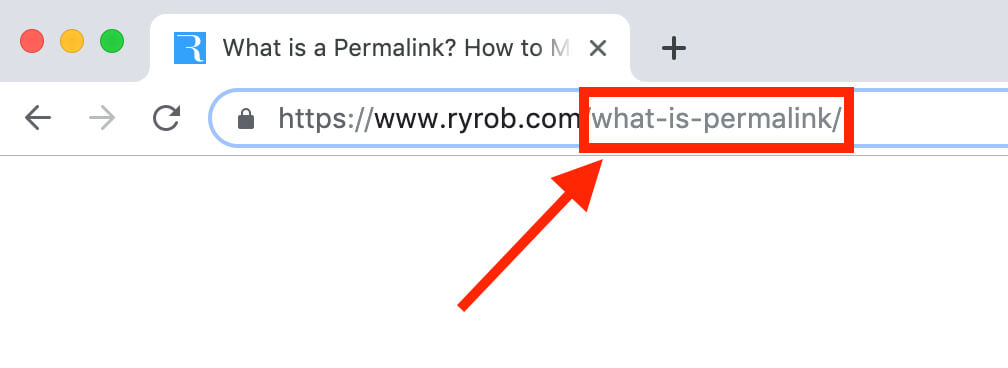
In the example above “ryrob.com” is the domain name while “what-is-permalink” is the permalink, combined they create the URL for a page.
Now, the next natural question—why is it considered bad practice in blog SEO to ever change a permalink?
Why should permalinks remain unchanged?
After a particular post or page is published, the permalink for that page shouldn’t be changed without very good cause (and in extreme exceptions). Permalinks should remain unchanged because any incoming links the post or page has from other websites, will suddenly be pointing to a missing URL.
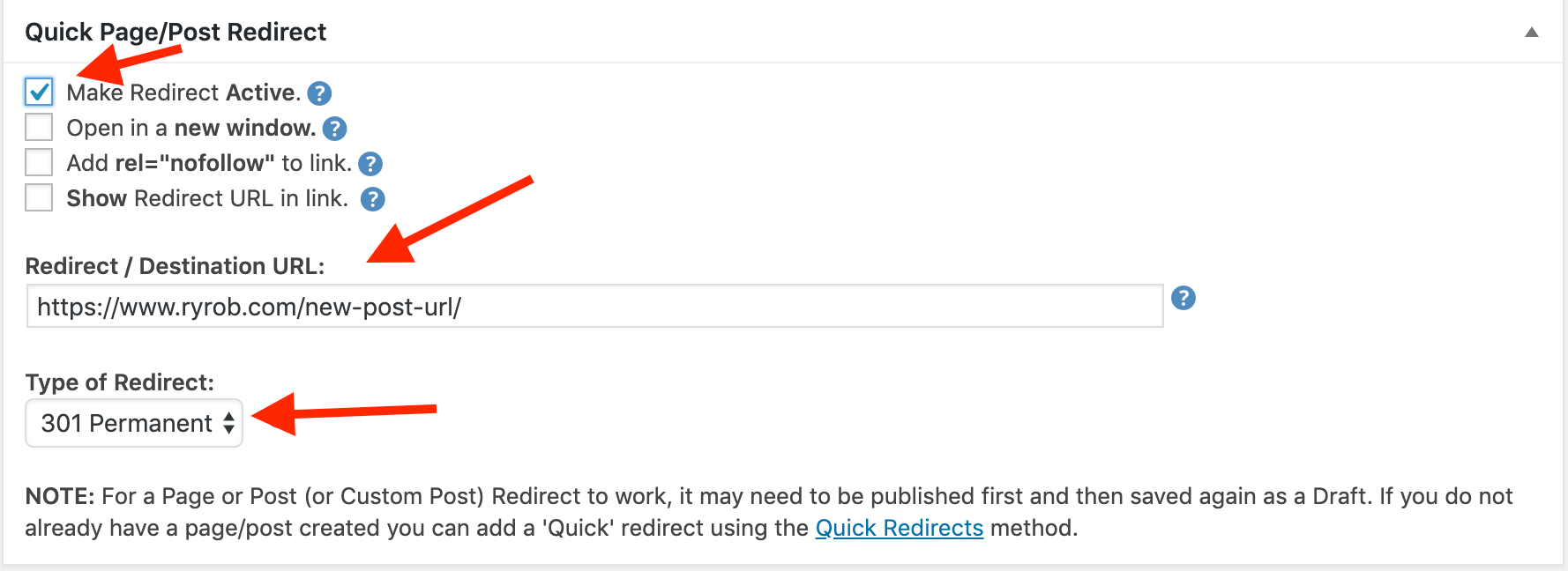
If you do need to change a permalink at some point on your blog, it’s absolutely crucial that you set up a proper 301 redirect in order to clearly tell search engines (like Google) that your the old url of your post, page or article has now moved to the new permalink you’ve set up.
You can use a free WordPress plugin like Quick Page/Post Redirect (like I use), to quickly set up a 301 redirect for a post or page you plan to move to a new URL like so:
Changing the URL (permalink) of an existing blog post without setting up a 301 redirect will result in what’s called a broken link.
Broken links are very bad for the SEO health of your website—because when someone clicks on a broken link somewhere out on the Internet or in search engine results, they’re essentially landing on a blank page that no longer exists. Especially when external links from other websites exist you don’t want them leading to broken content.
When this happens, it will lead to a high bounce rate because those visitors will immediately leave.
Search engines will notice that and decrease your organic rankings accordingly, so that they’re not sending traffic to an empty page on your website. And if you have multiple broken links on your website, search engines will likely devalue or penalize your website as a whole—resulting in an all around bad situation that’s easy to avoid.
Always 301 redirect any post or page you plan on moving to a new URL. Redirects are essential anytime you change URL structure on your website.
How to make SEO-friendly permalinks
If you’ve started your blog using WordPress, the CMS that powers more than 40% of sites on the Internet, then making SEO-friendly permalinks is extremely easy to do.
WordPress comes with a few default, out-of-the-box options for permalink structures that get automatically assigned to new posts and pages—as you begin drafting them. Best of all you don’t have to fiddle with htaccess files or HTML to create permanent URLs in WordPress.
Simply navigate to Settings > Permalinks like so:
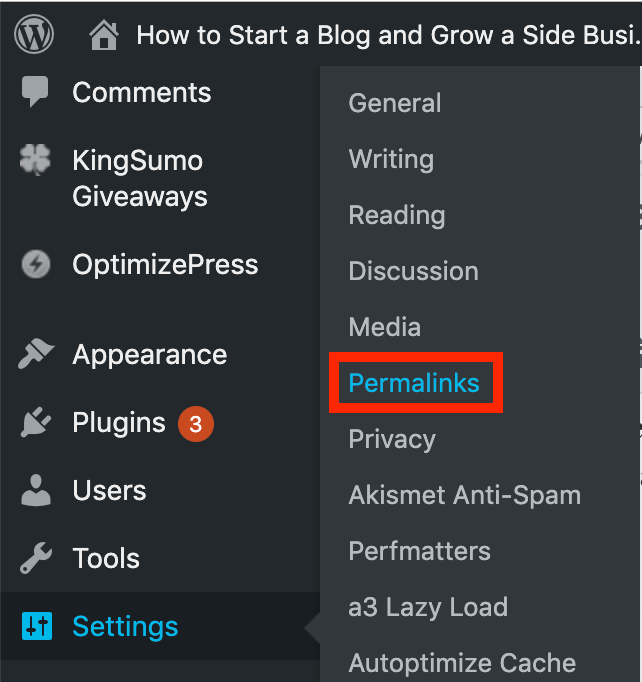
After clicking on Permalinks, you’ll be presented with the below page of options.
See the clear warning up top? It says, WARNING: Changing your permalinks settings can seriously impact your search engine visibility. It should almost never be done on a live website.
And as we’ve already discussed, that’s for good reason.
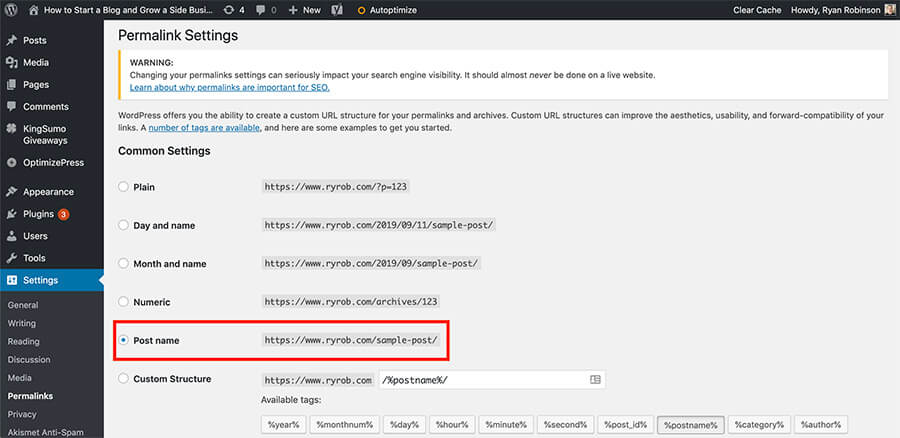
To create SEO-friendly permalinks for the URLs of your blog posts and pages, you should always use the default permalinks structure of Post name as the starting point for your permalinks.
There are a few custom permalink structure options when using WordPress. Including the ability to have a category base, year, month and others in your URL. If you have a news site you’ll want to include the date in the permalink. Otherwise I recommend only using the post name for your permalink.
If you’ve learned how to write a blog post that begins with an SEO-friendly headline (title), then the default permalink that populates in a draft blog post will naturally include the important keyword phrase that’s represented in your headline.
Here are a few examples of how SEO-friendly headlines translate into SEO-friendly permalinks:
- How to Start a Blog — https://staging.ryrob.com/how-start-blog/
- How to Make Money Blogging — https://staging.ryrob.com/make-money-blogging/
- 101 Best Blog Post Ideas — https://staging.ryrob.com/blog-post-ideas/
After doing your keyword research and uncovering the exact words or phrases your ideal readers are searching for, you can devise smart content topics that do the best possible job of answering those search queries they’re making.
Use My Free Keyword Research Tool
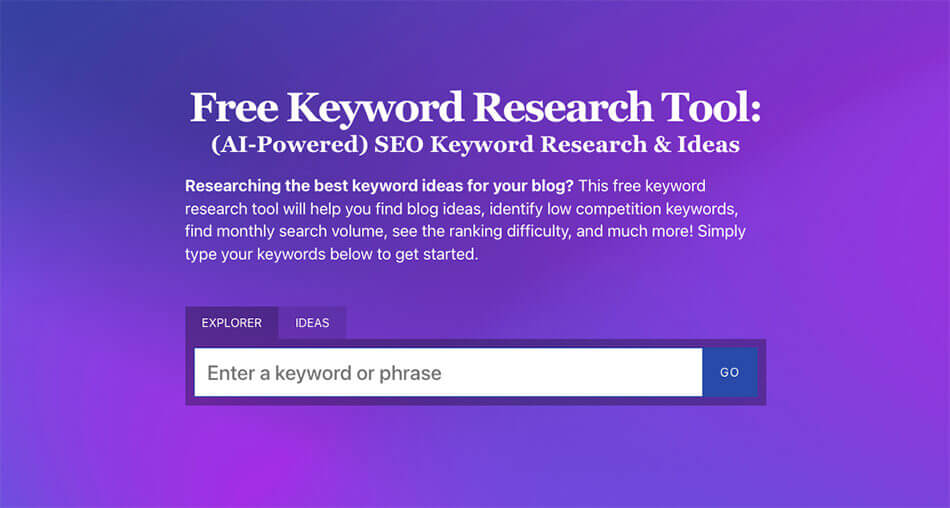
Try my free AI-Powered Keyword Tool to get dozens of research-backed ideas for keywords & topics to write about on your blog today.
Your article’s title will naturally need to include the core keyword phrase you’re hoping to rank for.
And when you type in the article’s title (as you’re drafting the post), the default permalink structure of “Post name” will automatically generate a permalink suggestion by pulling in the full text of your headline as the blog post URL.
Using the default “Post name” permalink suggestion isn’t good enough
While it’s tempting to settle with the default permalink that gets populated as a suggested blog post URL, it’s rare that you should accept that suggestion without making some edits (as your post is still a draft of course).
If you noticed in my three example blog post titles & corresponding permalink examples from above… the permalinks for those articles don’t include every single word from the title.
For the permalink, I’ve omitted very short and non-essential words like “to” and “a” so that they don’t make it into the URL and make it unnecessarily long.
To create SEO-friendly permalinks, you should usually delete these kinds of words from the URL before publishing your article:
- Conjunctions (for, and, nor, but, or, yet and so)
- Prepositions (words like to, of, with, at, from, into, for, on by, and so on…)
When using SEO tools you may notice these are called “stop words”.
In general, the shorter your permalink is—the more memorable it’ll be for readers and the easier it is for search engines to make quick sense of.
It’s important to include your target keyword phrase in the permalink for your post or page, and any other crucial operative words like “how” or “why” that clearly indicate the nature of what your content is talking about.
How to manually change a permalink (on an individual post or page)
If you’re using the Classic editor in WordPress, then you’ll be able to edit your permalink—ideally before hitting publish on your blog post—by clicking the “edit” button next to the permalink preview, located just below the headline of your article, right here:
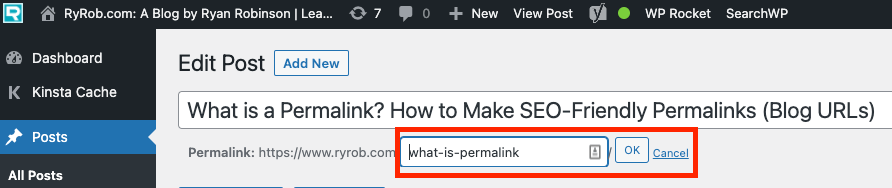
If you’re using the Gutenberg editor in WordPress, then you’ll be able to change your permalink for a post or page by clicking on the “Permalink” setting, located in the right-hand sidebar when editing the post or page, right here:
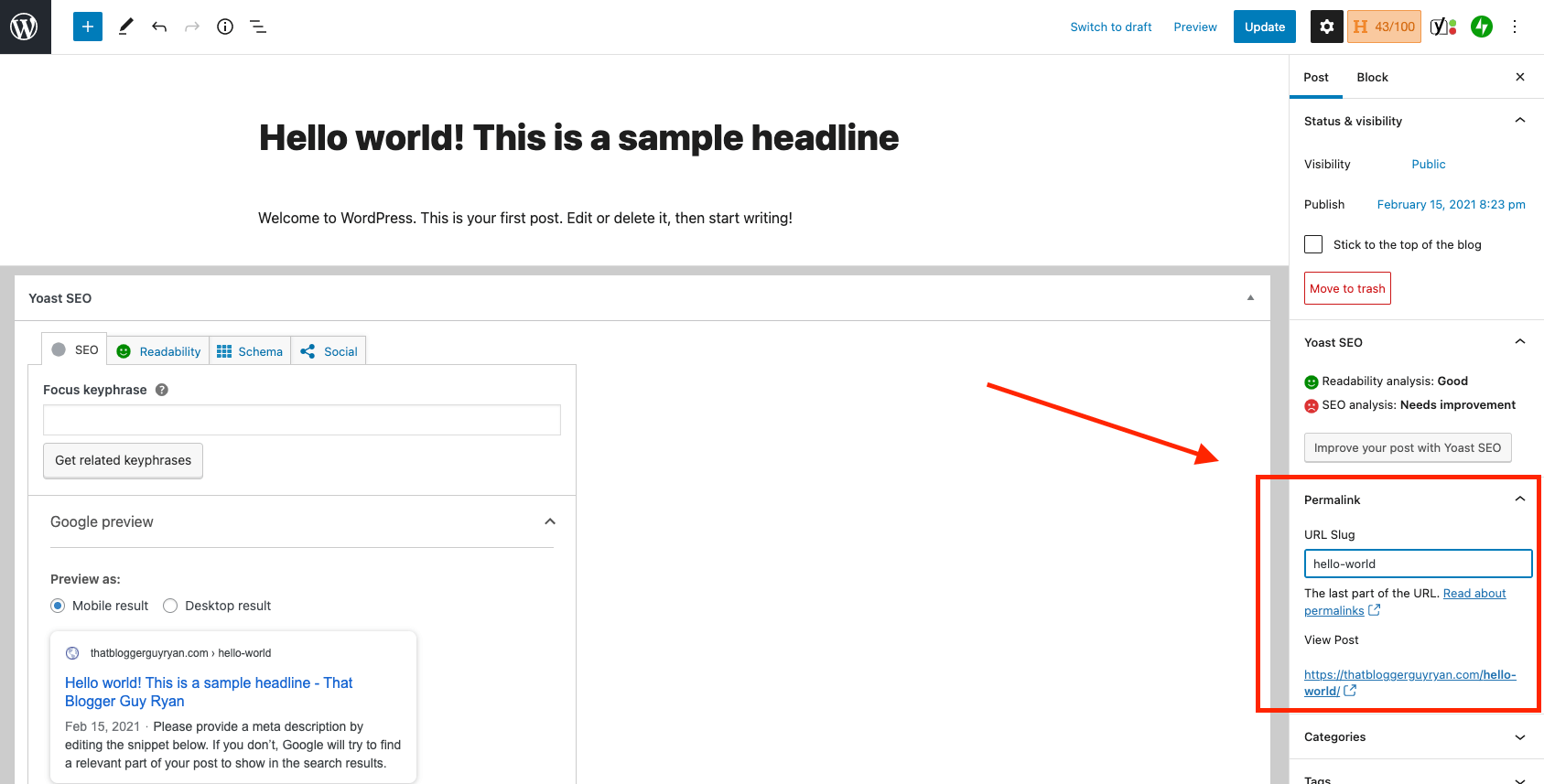
That’s it! Manually changing a permalink on an individual level for a post or page doesn’t have to be difficult.
Optimizing your off-page SEO is an entirely other story.
That kind of work can be done either manually or more quickly with a tool like Linkio that’s designed to help in monitoring backlinks and optimizing anchor text you get—for maximum benefits of the content and while still remaining neutral. Maintaining a quality backlink profile with a diversified range of anchor texts can be difficult, so using a tool made especially for this purpose can help immensely.
Permalink frequently asked questions
Here are some of the most common questions regarding permalinks. Is there is something missing just ask in the comments below.
A permalink is simply just a URL that is unchanged when content is updated.
A permalink example would be: https://www.website.com/this-is-a-permalink-example/
You can see that a permalink use the URL slug format by lowercasing all of the letters and replacing spaces with dashes.
Creating a permalink will depend entirely on what content management system you are using. If you’re reading this post you likely have a WordPress website. Of course there are plenty of other blogging platforms so I have included some other common platforms.
- WordPress: As displayed above a properly setup WordPress site should have permalinks enabled by default. You can view permalink settings in WordPress by going to Settings > Permalinks. This page in the WordPress dashboard will show you options for changing your permalink structure.
- Wix: You’ll find permalink options in Wix under the SEO basics menu when editing content.
- Squarespace: Permalinks in Squarespace are called slugs and easy to change using their admin interface.
- Drupal: If you’re using Drupal you’ll likely use autopath to generate SEO friendly permalinks. Pathauto module generates a URL/path alias using your taxonomy and node title automatically.
Permalinks are very important for a website since they allow users to predictably access content on your site. Additionally if a page is shared with a permalink online users can know what to expect when they click it. For example website.com?page=341 vs website.com/about-me/ seeing about me in the URL indicates to the user what the page will be about.
Have a permalink question?
Ask away in the comments section below and I’ll weigh in with my advice 🙂

47 replies to “What is a Permalink? How to Make SEO-Friendly Permalinks (Blog URLs)”
Explicit web platform offers a range of videos for adult
entertainment. Select secure adult sites for a safe experience.
Video’s voor volwassenen kunnen worden gestreamd op betrouwbare platforms voor privacy.
Ontdek betrouwbare adult hubs voor kwaliteitsweergave.
you’re in point of fact a just right webmaster. The site loading pace is
amazing. It kind of feels that you are doing any unique trick.
Also, The contents are masterwork. you’ve performed a wonderful task on this subject!
Expliciete video’s kunnen worden gestreamd op
betrouwbare platforms voor privacy. Ontdek veilige
websites voor kwaliteitsweergave.
This is really attention-grabbing, You are an overly
professional blogger. I have joined your rss feed
and look forward to searching for extra of your great post.
Additionally, I have shared your website in my social networks
Adult is toegankelijk via veilige en betrouwbare websites.
Ontdek betrouwbare platforms voor kwaliteitsinhoud.
Explicit material is available on various adult websites for entertainment.
Always choose safe platforms for a protected experience.
Top xxx sites bieden veilige en premium inhoud voor
volwassenen. Ontdek veilige sites voor een kwaliteitservaring.
Volwassen inhoud vinden door betrouwbare adult platforms online te verkennen. Ontdek betrouwbare porno
hubs voor een private ervaring.